iOS setup
iOS alternate icons live in your asset catalog and are registered in Info.plist. The folder name of each .appiconset is the string you pass to setIcon().
1. Directory structure
Add primary and alternative icons under Images.xcassets:
Images.xcassets
├── AppIcon.appiconset
│   ├── Contents.json
│   └── ... (icon images)
└── AlternativeIcon.appiconset
    ├── Contents.json
    └── ... (icon images)
Single 1024×1024 icon
Xcode can generate all sizes, or you can provide one universal icon in Contents.json (example below).
{
  "images": [
    {
      "filename": "alternate.png",
      "idiom": "universal",
      "platform": "ios",
      "size": "1024x1024"
    }
  ],
  "info": {
    "author": "xcode",
    "version": 1
  }
}
2. Update Info.plist
Add CFBundleIcons with your primary and alternate icons:
<key>CFBundleIcons</key>
<dict>
  <key>CFBundlePrimaryIcon</key>
  <dict>
    <key>CFBundleIconFiles</key>
    <array>
      <string>AppIcon</string>
    </array>
  </dict>
  <key>CFBundleAlternateIcons</key>
  <dict>
    <key>AlternativeIcon</key>
    <dict>
      <key>CFBundleIconFiles</key>
      <array>
        <string>AlternativeIcon</string>
      </array>
    </dict>
  </dict>
</dict>
- Primary icon:
CFBundleIconFilesmust match your primary.appiconsetname (e.g.AppIcon). - Alternate icons: Each key under
CFBundleAlternateIcons(e.g.AlternativeIcon) is the name passed tosetIcon().
3. Configure Xcode
- Open your project in Xcode.
- Go to General → App Icons and Launch Screen.
- Set App Icon to your default set (e.g.
AppIcon). - Enable Include all app icon assets under App Icons Source.
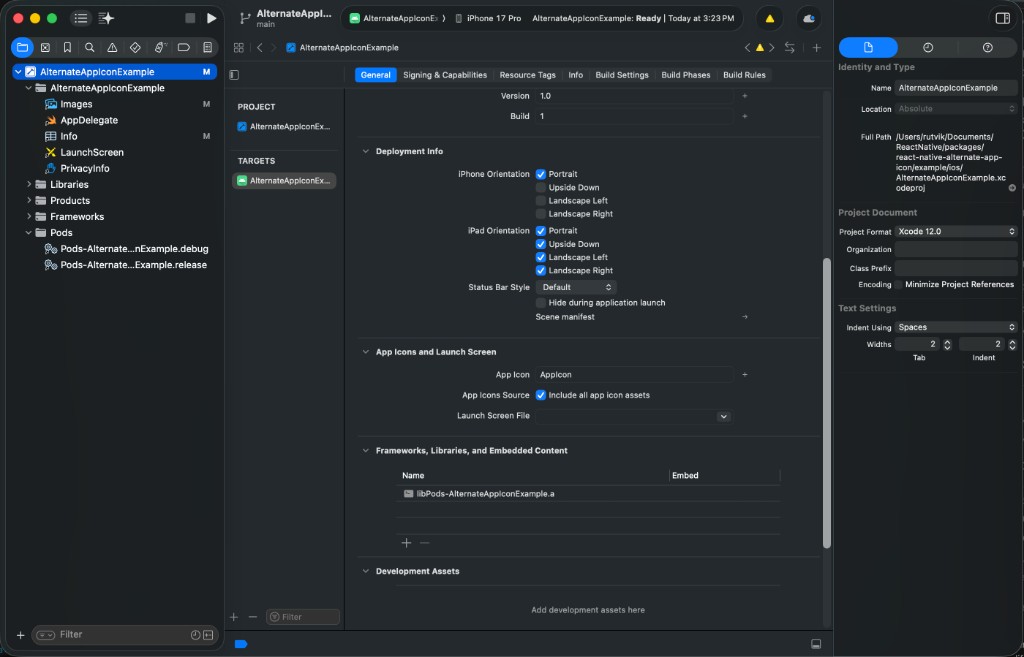
This checkbox bundles every icon set from the asset catalog so alternates are available at runtime.
Simulator limitations
On some latest iOS Simulators, the system alert after an icon change may not appear, which can make switching look broken. Test on a real device to confirm behavior.
Demo
Usage
await setIcon('AlternativeIcon');
await setIcon('Default'); // primary icon
See Platform notes for iOS-specific behavior (system alert, naming rules).